

Top Developer Monitors 2026: 4K, Ultrawide or Dual Setup?
Monitors for Developers 2026: 4K, Ultrawide, Dual Setup. BenQ RD320U, Dell U4025QW, ASUS ProArt compared for text sharpness and ergonomics.
9 min read
Your monitor is the developer’s workspace. Too small, too low-res, too fuzzy–every flaw chips away at productivity. But in 2026, the choices are more abundant than ever. 4K in 27 or 32 inches, ultrawide in 34 or 40 inches, OLED or IPS, dual setups or one massive screen. This guide cuts through the noise to focus on what truly matters for coding: text clarity, workspace real estate, ergonomics, and long-term reliability.
The key takeaways
- 4K (3,840 x 2,160) at 27 to 32 inches is the developer’s sweet spot. Text is razor-sharp, and pixel density supports scaled displays without compromise.
- Ultrawide monitors (34 to 40 inches) replace dual setups without the bezel gap. The Dell U4025QW (40 inches, 5K2K) is the current gold standard.
- OLED delivers perfect contrast for dark-theme editors but carries a real burn-in risk from static UI elements like taskbars and IDE menus.
- IPS Black strikes a pragmatic balance: deeper blacks than classic IPS, no burn-in risk, and proven durability for eight-plus hours of daily use.
- The BenQ RD320U (32 inches, 4K, IPS Black) is built specifically for programmers, featuring an integrated coding mode and eye-comfort technology.
The three setups: 4K, ultrawide, dual
Before diving into specific models, the fundamental question: Which setup aligns with your workflow? Three approaches dominate the developer workspace.
First: A single 4K monitor in 27 or 32 inches. This is the minimalist solution–ideal for focused work with an IDE and a terminal. The upside? A compact desk, one cable, one power source. The downside? If you’re constantly juggling an IDE, browser, terminal, and documentation, you’ll waste time managing windows instead of writing code. Tiling window managers like i3 or Amethyst help, but they don’t eliminate the issue.
Second: An ultrawide monitor in 34 or 40 inches. The effective equivalent of two 27-inch monitors, minus the bezel gap in the middle. IDE on the left, browser or terminal on the right, documentation in the center. The Dell U4025QW–40 inches with 5,120 x 2,160 resolution–sets the benchmark. Its workspace matches two 27-inch 4K monitors side by side, but the seamless display allows for more flexible window management.
Third: A dual-monitor setup with two 27-inch 4K displays. The classic choice. One screen for the IDE, the other for browsers, terminals, and communication. The advantage? Clear physical separation of tasks. The downside? A bezel gap in the middle, two cables, two power sources, and more desk space required.
Panel Technology: OLED vs. IPS Black vs. Classic IPS
OLED monitors deliver perfect black levels and theoretically infinite contrast. For developers working with dark-theme editors, this means a black background is truly black, and code stands out with maximum clarity. Colours are more vibrant, text appears sharper. Sounds ideal–but there’s a catch: burn-in.
Static UI elements like taskbars, IDE menu bars, browser tabs, and status lines stay in the same place for hours. On OLED panels, these elements can burn in over months, leaving ghostly afterimages. Manufacturers have introduced countermeasures (pixel refresh, automatic dimming of static areas), but the risk is real for those using their monitors eight or more hours a day. For displays primarily used as developer workstations, OLED in 2026 remains an experiment, not the standard.
IPS Black is the IPS manufacturers’ answer to OLED demand. The technology offers three times deeper black levels than classic IPS (typically a 2,000:1 contrast ratio instead of 700:1), without the burn-in risk. Text sharpness and colour accuracy are excellent, backlighting is even, and the panels are built for long-term use. For developers who rely on their monitor eight to ten hours a day, IPS Black is the most pragmatic compromise between image quality and longevity.
Classic IPS remains an option for budget setups. The panels are mature, affordable, and available in every size. If you don’t need deep blacks and work in daylight, the difference from IPS Black is barely noticeable. The €100 to €200 savings can be invested in a better keyboard or dock instead.
Text Sharpness: Why PPI Matters for Coding
Developers spend most of their screen time staring at text–code, documentation, chat messages, terminal output. Unlike graphic or video work, coding prioritises text sharpness over colour accuracy. Pixel density (PPI, pixels per inch) determines how crisply letters are rendered.
At 27 inches with 4K resolution, pixel density sits at 163 PPI. That’s close to Apple’s Retina standard (218 PPI on the MacBook Pro) and delivers razor-sharp text even at small font sizes. At 32 inches with 4K, PPI drops to 137. It’s still good, but the difference becomes noticeable with 10pt monospace fonts in a dark terminal. If you use size 12 or larger, the difference is negligible.
Ultrawide monitors with 5K2K (5,120 x 2,160) at 40 inches hit around 140 PPI. That’s between 27- and 32-inch 4K, offering a solid balance of text clarity and workspace. Cheaper ultrawide models with 3,440 x 1,440 at 34 inches only reach 109 PPI. That’s fine for office work but suboptimal for all-day coding with small fonts.
The practical takeaway: For developers who rely on IDEs and terminals as primary tools, pixel density should be at least 130 PPI. That includes 4K at 27 and 32 inches, as well as 5K2K ultrawides at 40 inches. 1440p monitors, even ultrawides, fall short and require either larger fonts or a greater viewing distance.
Connectivity: USB-C, Thunderbolt, and KVM
Modern monitors are more than just displays–they’re docking stations. USB-C with Power Delivery, integrated USB hubs, and KVM switches can make external docks redundant. The Dell U2723QE offers USB-C with 90W PD, three USB-A downstream ports, and Ethernet pass-through via an optional adapter. One cable from your laptop to the monitor is all it takes. Monitor, keyboard, mouse, and network–all connected.
The Dell U4025QW goes even further: Thunderbolt 4 with 140W PD, enough to fully charge even power-hungry laptops. Plus, an integrated KVM switch lets you toggle keyboard and mouse control between two connected machines with the press of a button. For developers juggling a Mac and a Linux workstation at the same desk, this is a genuine productivity booster–eliminating the need for a separate KVM switch and docking station.
If you already use a CalDigit TS4 or similar docking station, the monitor’s built-in hub features are less critical. But for new setups, a monitor with Thunderbolt and KVM can cut overall costs by replacing a standalone dock. The €300 to €400 savings go a long way toward offsetting the monitor’s higher price tag.
Five Monitors for the Developer’s Desk
The BenQ RD320U is the first monitor explicitly designed for programmers. 32 inches, 4K, IPS Black panel with a built-in coding mode that optimizes text contrast for both dark and light IDE themes. An integrated eye comfort solution automatically adjusts color temperature and brightness to ambient lighting conditions. Priced at around 900 euros, it’s the most thoughtfully engineered single-monitor solution on the market for developers.
The Dell U2723QE is the value champion among 27-inch 4K monitors. Featuring an IPS Black panel, 163 PPI, USB-C with 90W power delivery, and an integrated KVM switch for two computers. For about 500 euros, you get a monitor that charges your MacBook, connects your peripherals, and delivers razor-sharp text. For dual setups, two of these come to roughly 1,000 euros.
The ASUS ProArt PA32QCV features a 32-inch Quantum Dot panel with 98 percent DCI-P3 color coverage. For developers who also handle UI design, photo, or video editing, color accuracy is crucial. Factory-calibrated with Delta-E under 2. Price: around 1,200 euros. For pure coding, the BenQ RD320U is the better choice; for mixed workflows, the ProArt takes the lead.
The Dell U4025QW sets the standard for ultrawide displays: 40 inches, 5,120 x 2,160 pixels, IPS Black, Thunderbolt 4 with 140W power delivery, and an integrated KVM switch. This device replaces two 27-inch monitors with a seamless, uninterrupted workspace. At around 1,400 euros, it’s pricier than a dual setup, but the clean, bezel-free surface and single-cable connection to your laptop justify the premium for many users.
The LG 27UP850-W is the budget pick: 27 inches, 4K, standard IPS, USB-C with 96W PD. Under 400 euros, it’s a solid monitor sufficient for coding in daylight conditions. It lacks IPS Black depth and factory calibration, but it’s reliable–and in a dual setup, costs under 800 euros. For teams outfitting multiple workstations, this is the most cost-efficient option.
Ergonomics: What Matters After Eight Hours
The basic ergonomic rules for monitor setups are well known–but often ignored. The top edge of the screen should align with eye level, and viewing distance for a 27-inch monitor should be about 60 to 70 centimeters. For 32 inches, it can be slightly more; for a 40-inch ultrawide, at least 80 centimeters.
A height-adjustable monitor arm is recommended for every setup. It allows fine-tuning of screen height, frees up desk space beneath the monitor, and lets you swing the display aside when needed. Most of the monitors listed here come with functional stands, but an arm offers far greater flexibility. Quality VESA arms cost between 30 and 80 euros and are worth every penny for any monitor over 24 inches.
Recommendations by Budget and Workflow
Under 500 euros: One LG 27UP850-W as a single monitor, or two in a dual setup (under 800 euros total). A solid baseline for coding in daylight.
500 to 1,000 euros: BenQ RD320U as a single monitor (900 euros), or dual Dell U2723QE (2 x 500 euros). Both options offer IPS Black and USB-C PD. The BenQ is the single-monitor benchmark; the Dell dual setup is the flexible choice.
Over 1,000 euros: Dell U4025QW as an ultrawide (1,400 euros) for maximum, bezel-free workspace. Or the ASUS ProArt PA32QCV (1,200 euros) for developers with design demands. Both are long-term investments built to last five to seven years.
Frequently Asked Questions
Is OLED worth it for developers?
As of 2026, it depends. OLED delivers the best contrast for dark-theme editors, but the risk of burn-in from static IDE elements is real with eight or more hours of daily use. For developers who also use their monitor for gaming or watching films, OLED can make sense. For pure coding work, IPS Black is the safer long-term choice.
Is a 27-inch 4K monitor enough, or do I need 32 inches?
At 27 inches, 4K offers 163 PPI, which is ideal for razor-sharp text. A 32-inch 4K display has 137 PPI–still sharp, but with more workspace. If you prefer working without scaling at native resolution, 32 inches is the better choice because text and UI elements appear larger. If you work with 150% scaling, 27 inches will give you the sharpest text.
Is an ultrawide better than a dual setup?
For most developers, yes. The seamless workspace without bezel gaps and with just one cable is far more practical. The downside? If an ultrawide monitor fails, you lose your entire workspace–with a dual setup, at least one screen remains usable. For users who frequently drag windows between two physically separate areas, a dual setup might feel more intuitive.
Do I need USB-C Power Delivery on my monitor?
If you’re using a laptop-based setup: absolutely. USB-C Power Delivery (PD) reduces your setup to a single cable from laptop to monitor. The monitor delivers power, video, and data all in one. For desktop PCs, USB-C PD is less critical. Pay attention to wattage: 90W is enough for a MacBook Air and most ultrabooks, while 140W is needed for a 16-inch MacBook Pro and power-hungry Windows laptops.
Editor’s Picks
USB-C docking stations tested: One cable to rule them all?
The best mechanical keyboards for developers in 2026
Framework Laptop 16 review: The modular notebook for developers
More from the MBF Media Network
E-invoicing 2026: What really changes after the mandatory rollout (MyBusinessFuture)
Infostealers in 2026: Session cookie theft and MFA bypass (SecurityToday)
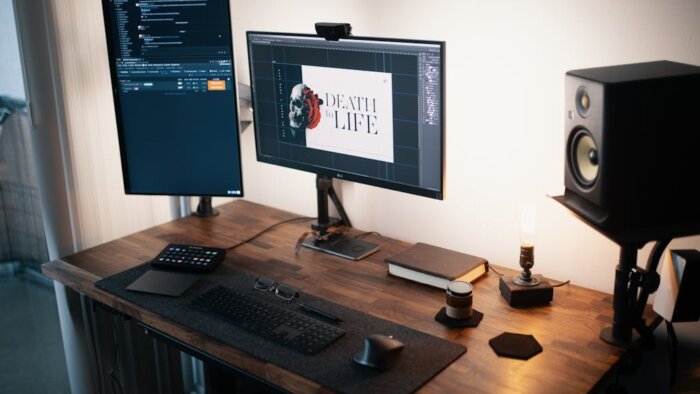
Source header image: Pexels / Josh Sorenson (px:7899236)
Translated from the German original using artificial intelligence. The German version is authoritative.


